How it works
Four steps. All of them work in airplane mode.
The only thing that ever leaves the phone is the export you share yourself. Everything between the shutter and that share happens on the device.
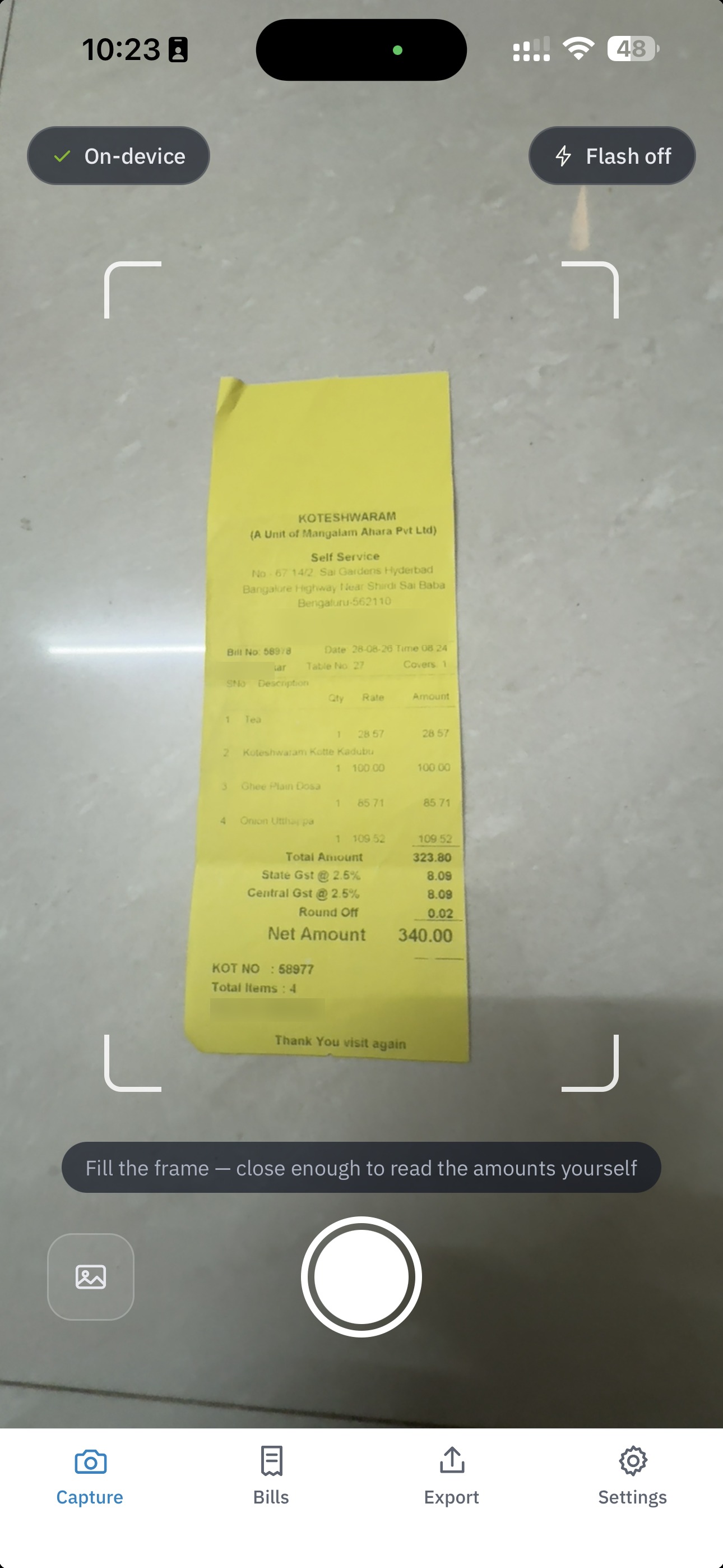
1 · Snap
A few seconds while the card machine prints.
The app opens on the camera with a guide frame. Line the bill up, tap the shutter. Before you have put the phone down, five checks have run on the photo:
| Check | What it asks |
|---|---|
| Blur | “Photo is blurry — retake?” |
| Readable text | “Can’t read the bill — move closer” |
| Digits | “Amount not visible — retake” |
| Cut off | “Bill looks cut off” |
| Glare | “Glare — tilt slightly” |
Every check offers Retake or Use anyway. None of them stops you. A crumpled thermal receipt in bad light is still a bill you need to file.
Sideways? The app straightens it. Longer than the frame? It is read in sections and joined back up. More than one page? Tap + Add page on the next screen.
Not a paper bill? Tap Import and pick the photo or PDF that came by mail or WhatsApp.
2 · Check
Only what the app is unsure of asks for your eyes.
Review shows the photo beside the fields. Amount paid, date, merchant and address, invoice number, tax number and tax breakup have been read from the bill on the phone. Fields the app is confident about are filled normally. Fields it is unsure of carry an amber border.
Amber is a pointer, not a gate. Tap the field to fix it, or save it as read. The app refuses a save only for data that is actually invalid, such as no amount at all or a date in the future, and it names the problem.
Pick a category and payment type from your own chips. Correct the category for a merchant once and the next bill from them arrives already filed.
If the bill looks like one you already have, an amber banner says so, with the date and amount of the earlier one and a link to view it. You decide whether it is a repeat.
Tap Save. The toast names the month it was filed into.
3 · File
Bills drop into their month.
The Bills tab groups everything by month with a subtotal at the top of each section. Each row shows the thumbnail, merchant, amount and a chip: Pending or Submitted. Search by merchant or amount, filter by status, tap to reopen.
Insights sums it up: this month’s total, spend by category and by payment type, the recent trend, and how many bills are still pending.
Travelling? Bills keep the currency printed on them. Set a home currency, enter the rate from your card statement, and the totals show the converted figure with per-currency subtotals beside it and a plain count of anything not yet converted.
4 · Hand over
One file your accounts team can just open.
Open Export, pick This month, Last month or a custom range. The preview shows the count and total. Tap Generate and the phone builds:
SnapBill_2026-08-01_2026-08-31.zip
├── manifest.json
├── Summary.xlsx
└── bills/
    └── company-cc/
        └── 2026-08-14_Indiana-Delights_30.10_1.jpg
Share it through any app on the phone: mail to accounts, drop it in a chat, save it to a drive.
Exporting marks nothing. When the bills have actually been sent, tap Mark as Submitted. That stays a separate, deliberate action, so Pending and Submitted never blur.
The package is also your safety copy. Everything lives on the device, so uninstalling the app deletes the data with it. A monthly export, kept wherever you keep your files, is the backup.
That is the whole app.
No onboarding wizard. No account to create. Install it, and the first bill can be filed in the time it takes the card machine to print.